Document Understanding with PaperMage
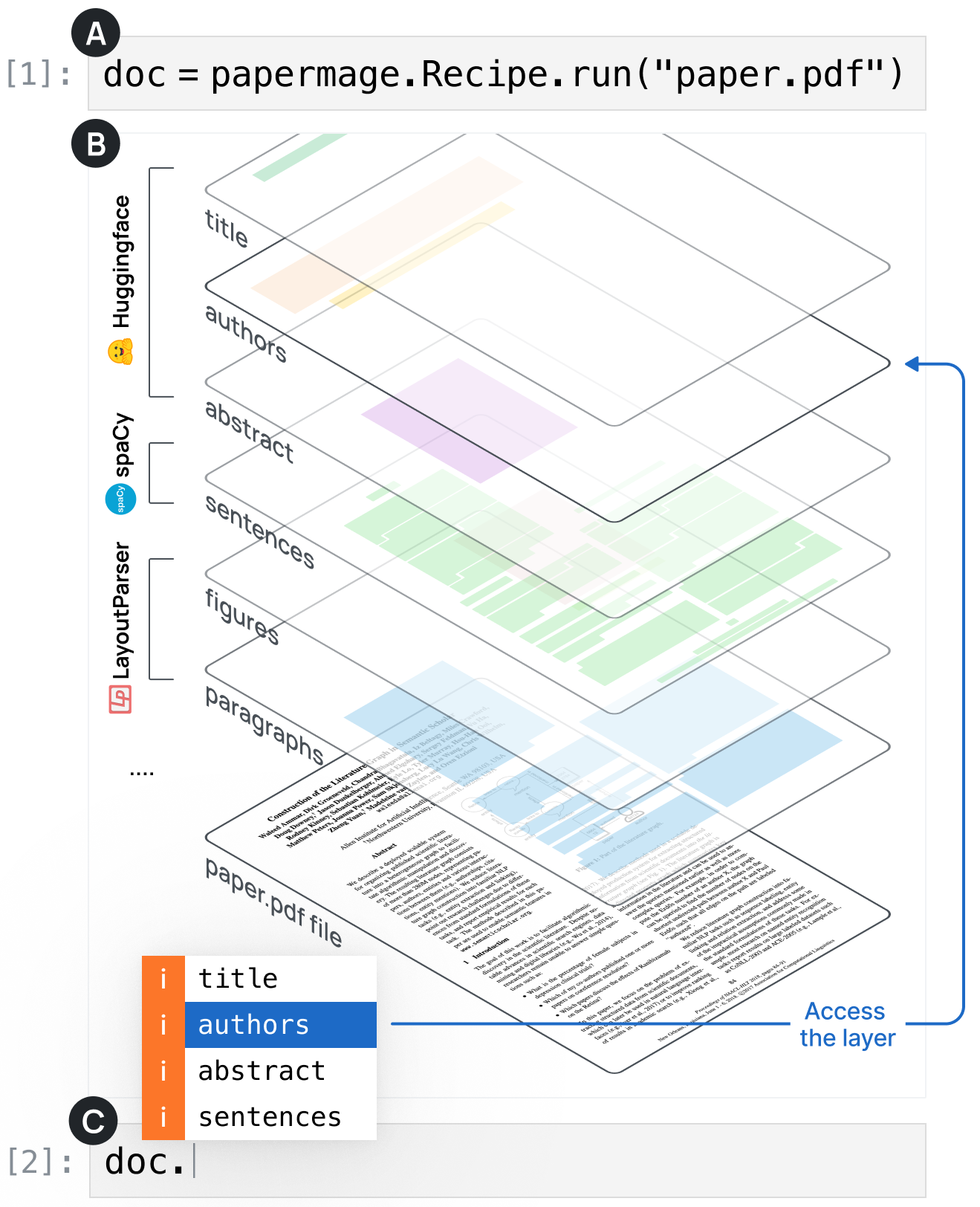
Table of contents
Extracting useful information from research papers and technical documents is never easy. PDFs often have complex layouts, lots of figures, tables, and specialized text. This makes it tough for standard tools to process them correctly.
That’s where PaperMage PaperMage comes in. PaperMage is a toolkit built to read, understand, and organize information from scientific documents. In this blog, I’ll show you how to use it step by step — from loading a paper to analyzing and visualizing its content.
The Core Recipe: One-Stop Pipeline
The main way to run PaperMage is with the CoreRecipe. Think of it as the full pipeline that handles everything for you:
from papermage.recipes import CoreRecipe

core_recipe = CoreRecipe()
doc = core_recipe.run("path/to/your/pdf")
In just two lines, this pipeline:
- Loads the PDF
- Converts each page into an image
- Reads the text and layout
- Detects important elements like titles, authors, abstracts, and sections
- Builds a structured document object
At the end, you have a rich doc object containing all the extracted info.
Exploring the Document
After processing, you can check the document’s structure:
print(doc)
Document with 27 layers: ['symbols', 'images', 'metadata', 'tokens', 'rows', 'pages', 'sentences', 'blocks', 'figures', 'tables', 'vila_entities', 'titles', 'paragraphs', 'authors', 'abstracts', 'keywords', 'sections', 'lists', 'bibliographies', 'equations', 'algorithms', 'captions', 'headers', 'footers', 'footnotes', 'Figure', 'Table']
Each document is split into pages, and each page has elements like images, tokens (words), titles, authors, figures, and more.
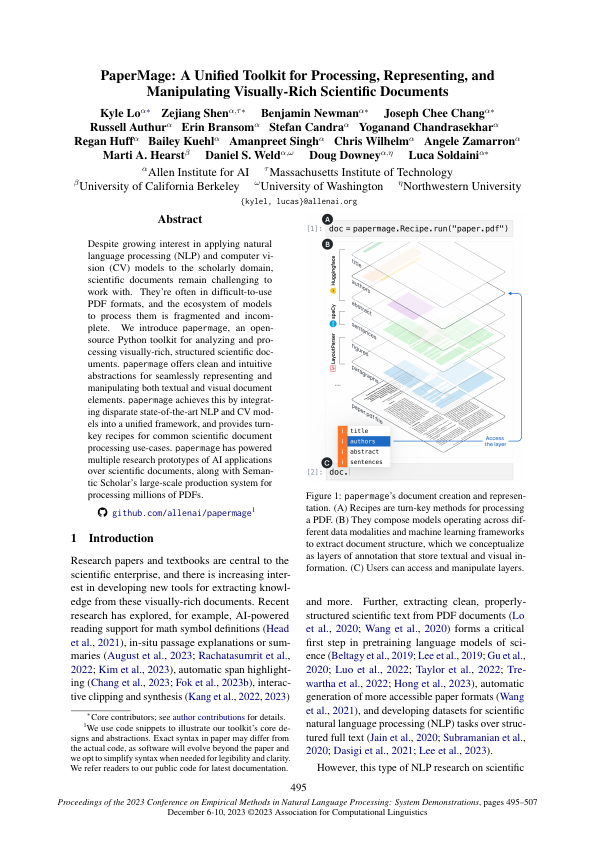
For example, you can look at the first page image like this:
doc.pages[0].images[0]
Visualizing Elements
One of the coolest features in PaperMage is visualization. You can highlight the parts of the page it has detected:
from papermage.visualizers import plot_entities_on_page

page = doc.pages[0]
highlighted = plot_entities_on_page(page.images[0], page.tokens, box_color="yellow", box_alpha=0.3)
highlighted = plot_entities_on_page(highlighted, page.abstracts, box_color="red", box_alpha=0.1)
display(highlighted)
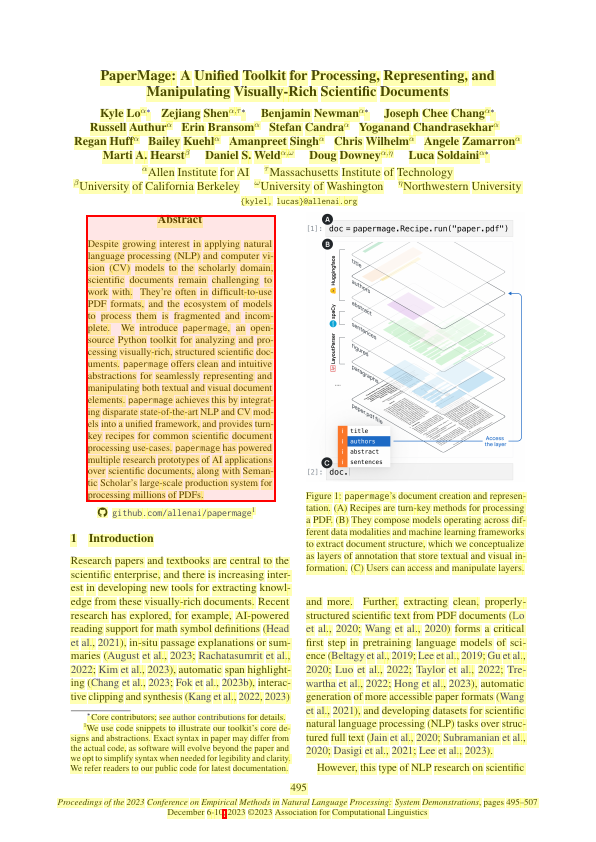
Here, tokens show up in yellow, and abstracts show up in red. This helps you check if the tool is parsing the document correctly.
Extracting Metadata
PaperMage also pulls out metadata like abstracts, titles, and authors.
# abstract sentences
print(doc.abstracts[0].sentences)
[Annotated Entity: ID: 0 Spans: True Boxes: False Text: Proceedings of the 2023 Conference on Empirical Methods in Natural Language Processing: System Demonstrations , pages 495–507 December 6-10, 2023 ©2023 Association for Computational Linguistics PaperMage: A Unified Toolkit for Processing, Representing, and Manipulating Visually-Rich Scientific Documents Kyle Lo α ∗ Zejiang Shen α,τ ∗ Benjamin Newman α ∗ Joseph Chee Chang α ∗ Russell Authur α Erin Bransom α Stefan Candra α Yoganand Chandrasekhar α Regan Huff α Bailey Kuehl α Amanpreet Singh α Chris Wilhelm α Angele Zamarron α Marti A.]
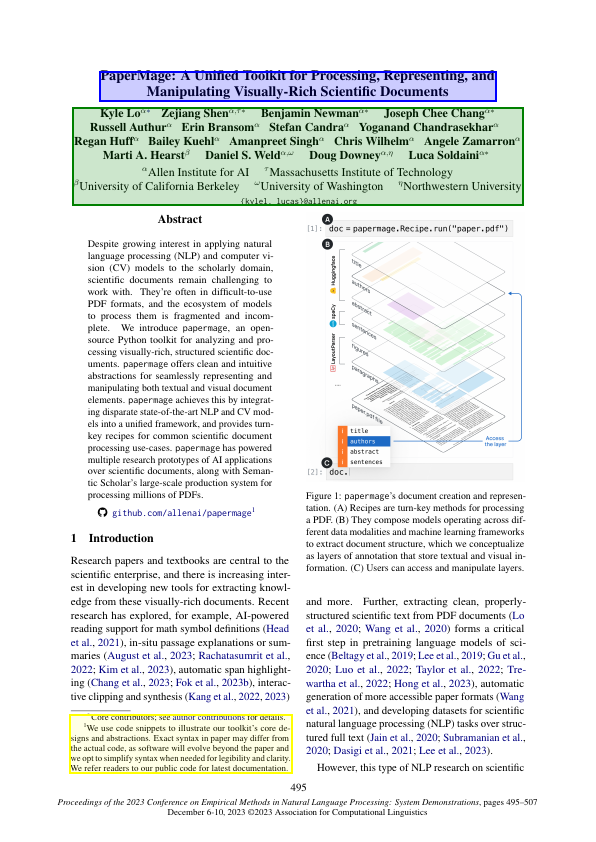
Or highlight and print the title and author list:
highlighted = plot_entities_on_page(doc.pages[0].images[0], doc.pages[0].titles, box_color="blue", box_alpha=0.2)
highlighted = plot_entities_on_page(highlighted, doc.pages[0].authors, box_color="green", box_alpha=0.2)
display(highlighted)

print("TITLE:", doc.pages[0].titles[0].text)
print("AUTHORS:", doc.pages[0].authors[0].text)
TITLE:
PaperMage: A Unified Toolkit for Processing, Representing, and Manipulating Visually-Rich Scientific Documents

AUTHORS:
Kyle Lo α ∗ Zejiang Shen α,τ ∗ Benjamin Newman α ∗ Joseph Chee Chang α ∗ Russell Authur α Erin Bransom α Stefan Candra α Yoganand Chandrasekhar α Regan Huff α Bailey Kuehl α Amanpreet Singh α Chris Wilhelm α Angele Zamarron α Marti A. Hearst β Daniel S. Weld α,ω Doug Downey α,η Luca Soldaini α ∗ α Allen Institute for AI τ Massachusetts Institute of Technology β University of California Berkeley ω University of Washington η Northwestern University {kylel, lucas}@allenai.org
Working with More Pages
The same process works for any page. For example, on page 4 you can highlight figures, captions, sections, and paragraphs:
highlighted = plot_entities_on_page(doc.pages[3].images[0], doc.pages[3].figures, box_color="blue", box_alpha=0.2)
highlighted = plot_entities_on_page(highlighted, doc.pages[3].paragraphs, box_color="green", box_alpha=0.2)
highlighted = plot_entities_on_page(highlighted, doc.pages[3].captions, box_color="pink", box_alpha=0.2)
highlighted = plot_entities_on_page(highlighted, doc.pages[3].sections, box_color="yellow", box_alpha=0.2)
display(highlighted)
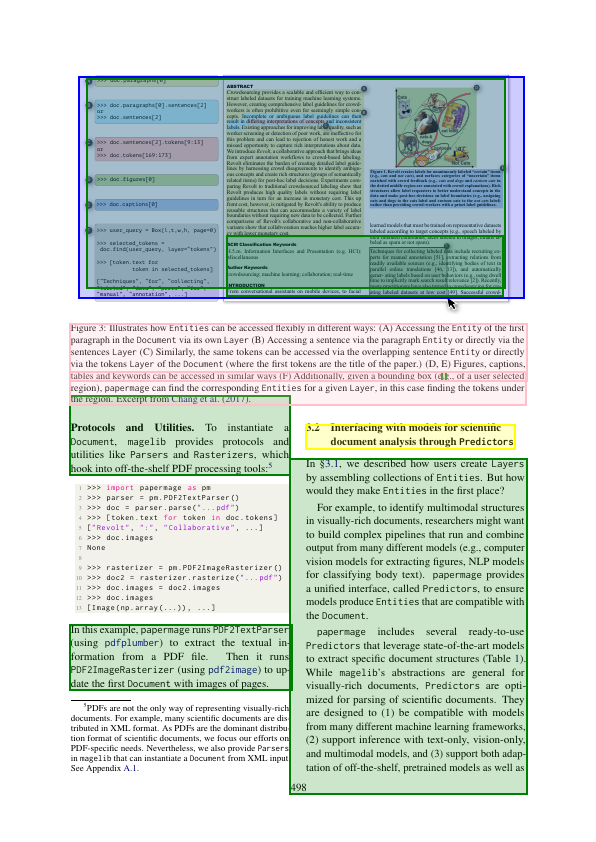
This way, you can visually understand the layout and structure of the whole document.
Final Thoughts
PaperMage makes document analysis much easier. Instead of manually scanning through PDFs, you can load, parse, and explore scientific papers programmatically.
For researchers and developers, this means less time wasted on formatting and more time spent on analysis. Whether you’re reviewing hundreds of papers, building a research database, or making document-based applications, PaperMage gives you a strong foundation.
By combining visual layout + text content, it turns the complex structure of research papers into structured, usable data.